
Whether you’re a beginner or an experienced programmer, installing Python on your computer is the first step to start coding. So, if you want to learn Python programming, then first install Python. In this tutorial, I will show you how to install Python on Windows and MacOS.
To install Python on Windows, first, download the latest Python installer from the official Python website. Run the installer, ensure you check the “Add Python to PATH” box, and click “Install Now.” After the installation completes, open Command Prompt and type python --version to verify the installation.
Install Python on Windows
First thing, I will show you how to install Python on the Windows operating system.
- Open your web browser and go to the official Python website. Then, from the menu, click on Downloads and choose the operating system.
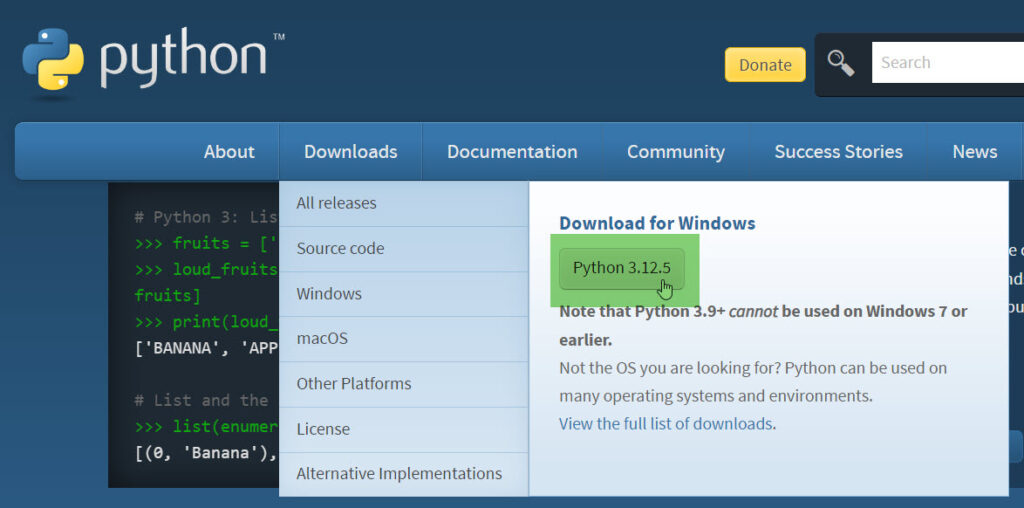
- Once the download is complete, locate the installer file (usually in your Downloads folder) and double-click to run it.
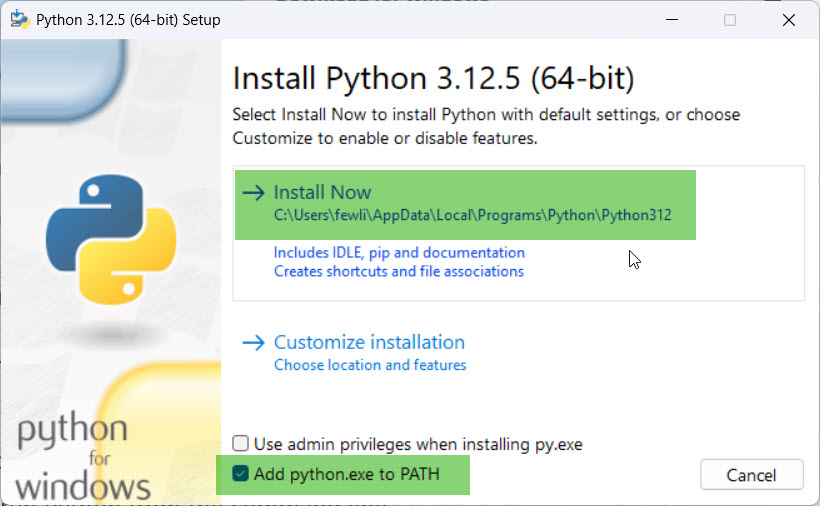
- The Python installer window will appear. Check the box that says “Add Python to PATH.” This is important as it allows you to run Python from the command line.
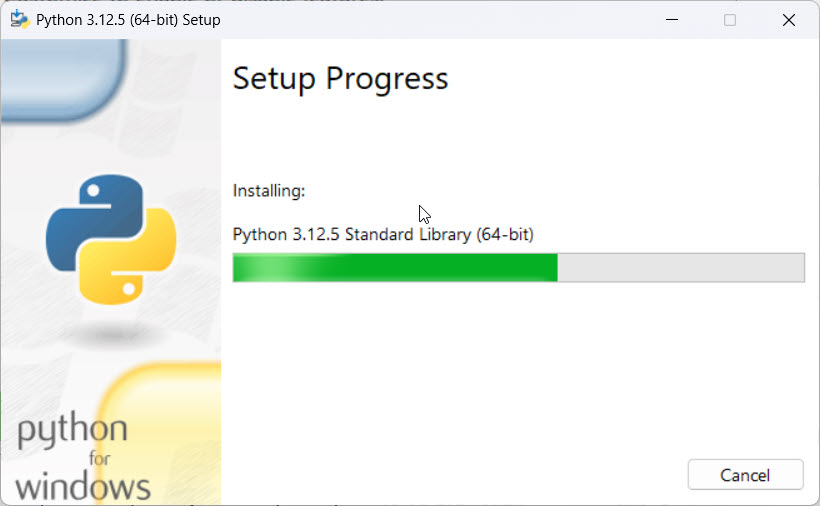
- Click on “Install Now” to begin the installation process. The installer will handle the rest, and you’ll see a progress bar indicating the installation status. You can see the screenshot below:
- You can also see it will show a progress window like this.
- Open the Command Prompt by searching for “cmd” in the Start menu.
- Type
python --versionand press Enter. You should see a message displaying the installed Python version, such as “Python 3.x.x.” After I installed Python on Windows, you can see the version of Python in the screenshot below:
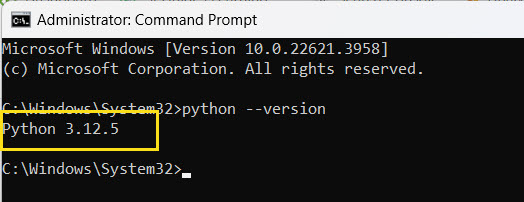
This is how to install Python on Windows OS using a setup file.
Read Install a Specific Version of a Package in Python
How to Install Python on Windows 11 using cmd
Now, let me show you how to install Python on Windows 11 using cmd. Follow the below steps:
- Open Command Prompt: Press
Win + R, typecmd, and press Enter to open the Command Prompt. - Navigate to a Download Directory: Use the
cdcommand to navigate to a directory where you want to download the Python installer. For example:
cd C:\Users\YourUsername\Downloads- Download Python Using
curl: Use thecurlcommand to download the Python executable. Replace3.10.0with the version you want to install. Here is an example for Python 3.12.5:
curl -o python-3.12.5.exe https://www.python.org/ftp/python/3.12.5/python-3.12.5-amd64.exe- Run the Installer in Silent Mode: Execute the downloaded installer with specific flags to install Python silently. This means the installation will proceed without further user interaction. Use the following command:
python-3.12.5.exe /quiet InstallAllUsers=1 PrependPath=1/quiet: Runs the installer in silent mode.InstallAllUsers=1: Installs Python for all users.PrependPath=1: Adds Python to the system PATH.
- Check Python Version: After the installation completes, verify that Python is installed correctly by checking its version. In the Command Prompt, type:
python --versionYou should see the installed Python version, for example:
Python 3.12.5Check pip Version: Similarly, verify that pip (Python’s package installer) is installed by typing:
pip --version You should see the pip version, for example:
pip 21.0.1 from C:\Python310\lib\site-packages\pip (python 3.10)Install Python Packages Using pip
- Install a Package: To ensure everything is working, try installing a Python package using
pip.
For example:
pip install requests This command installs the requests package, which is useful for making HTTP requests.
Read Python Module Not Found After Pip Install
Install Python on Mac OS
Now, let me show you how to install Python on Mac OS. The steps are the same as the above.
- Open your web browser and visit the official Python website: Python.org.
- Navigate to the Downloads section and click on the “Download Python” button for macOS.
- Once the download is complete, locate the installer package (usually in your Downloads folder) and double-click to open it.
- The Python installer window will appear. Follow the on-screen instructions to proceed with the installation. Click “Continue,” then “Agree” to the license agreement, and finally “Install.”
- You may be prompted to enter your Mac’s administrator password. Enter it and click “Install Software.”
- Open the Terminal by searching for it in Spotlight or navigating to Applications > Utilities > Terminal.
- Type
python3 --versionand press Enter. You should see a message displaying the installed Python version, such as “Python 3.x.x.”
This is how to install Python on Mac OS.
Conclusion
I hope now you learn how to install Python in your local system. Here, I have explained step by step, how to install Python on Windows or Mac OS.

I’m Michelle Gallagher, a Senior Python Developer at Lumenalta based in New York, United States. I have over nine years of experience in the field of Python development, machine learning, and artificial intelligence. My expertise lies in Python and its extensive ecosystem of libraries and frameworks. Throughout my career, I’ve had the pleasure of working on a variety of projects that have leveraged my skills in Python and machine learning. Read more…